

Jan 30, 2025
Getting Started with PLC runtime on Finder Opta PLC
A step-by-step guide for setting up the Arduino Opta PLC runtime for the first time, including how to solve the 'Error Cannot download sketch file (error code 1).'
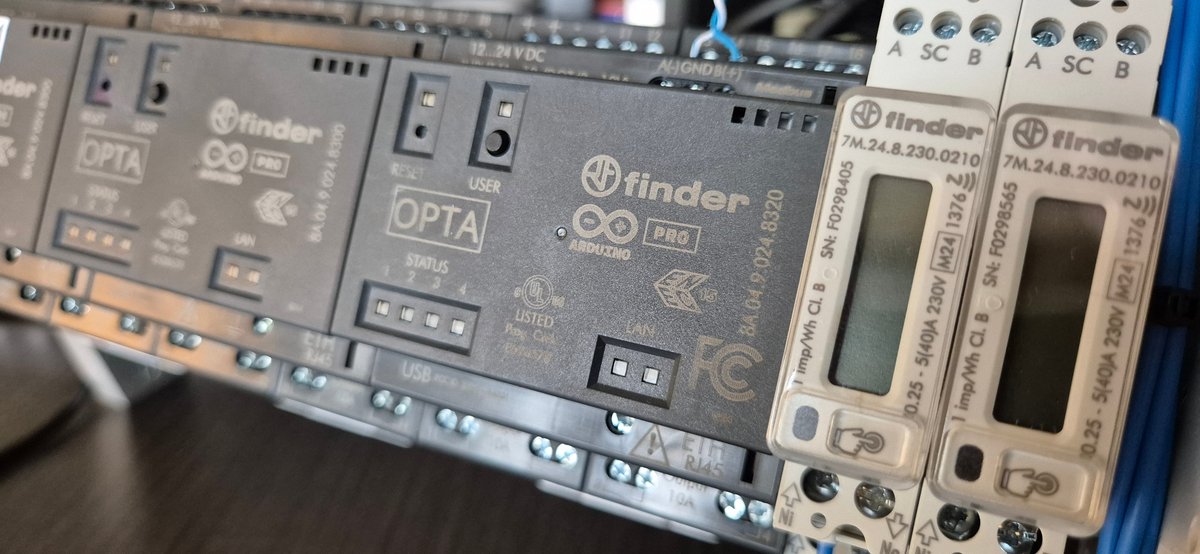
Overview
This tutorial walks you through how to set up and work with the Finder Opta PLC runtime for the first time. We’ll also address a common error you might encounter—“Cannot download sketch file (error code 1).” If you follow these instructions step by step, you should be able to get your Opta PLC up and running smoothly.
Note: This guide assumes you’re on a Windows PC, although the general steps should be similar on other operating systems.
Prerequisites
Hardware
- Opta PLC
- USB-C cable that supports data transfer
Software
- Arduino IDE and Arduino PLC IDE installed on your computer.
Step-by-Step Guide
1. Download and Install Necessary Tools
- Install Arduino IDE: If not already installed, download the Arduino IDE from here and follow the setup instructions.
- Install Arduino PLC IDE: You’ll find the download on the same page. Install it as well.
2. Arduino IDE Configuration
- Open Arduino IDE.
- Go to Tools → Board → Boards Manager.
- Search for Arduino mbed os opta and click Install.
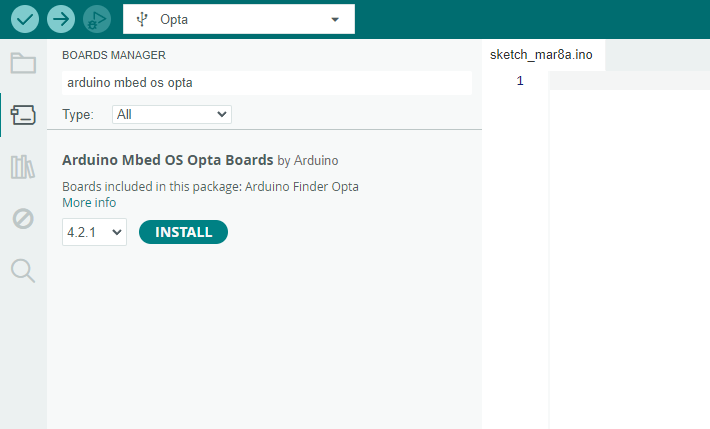
- Accept possible unknown publisher notification.This should install all required tooling to communicate with the Opta PLC on your PC.
3. Connect the OPTA to Your PC
- Use a USB-C Cable (one that supports data transfer).
- Plug the Opta PLC into your computer.
4. Enter DFU Mode on the OPTA
- Locate the Reset button on the device.
- Double-click this reset button to set the device into DFU (Device Firmware Upgrade) mode.
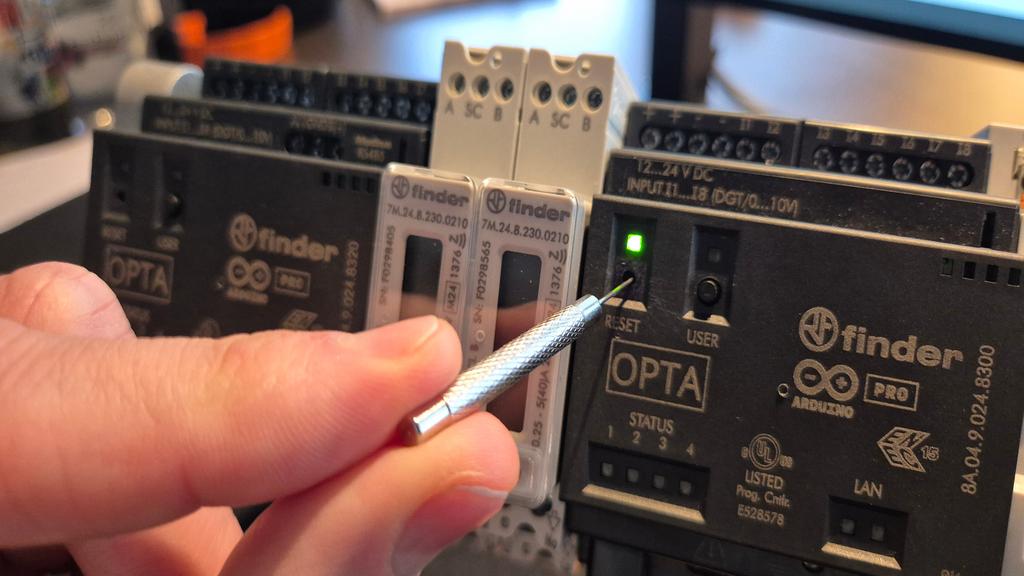
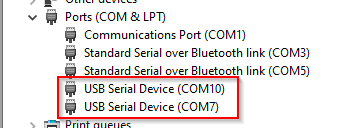
- (Optional) Check COM ports in your device manager to confirm two new devices appear (e.g., COM7 and COM10).
5. Arduino PLC IDE Configuration
- Open the Arduino PLC IDE.
- Open or create a Project.
- Click Refresh current target to ensure the IDE recognizes your device.
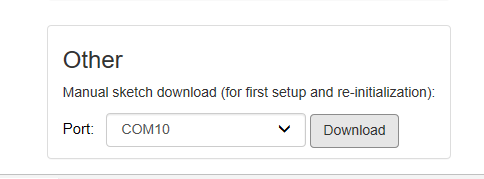
- Select the First COM Port in the Arduino PLC IDE Communication settings (the highest COM port number). In our example, it’s COM10 inside the project overview window.
6. Set Up Modbus Communication
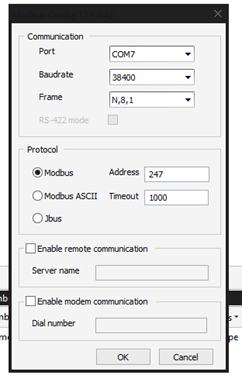
- Go to Online → Setup Communication → Properties in the PLC IDE.
- Select the Modbus protocol, then click Properties again.
- In the Port dropdown, select the lowest COM port number of the two new ports you identified earlier (in our example, COM7).
7. Download Your PLC Project
- Click the Download button in the Arduino PLC IDE (this uses the previously chosen highest port, e.g., COM10).
- If prompted by a firewall access alert, click Allow (this only appears the first time).
- Check the Output window in Arduino PLC IDE for a confirmation message indicating a successful download.

8. Connect to the Opta PLC
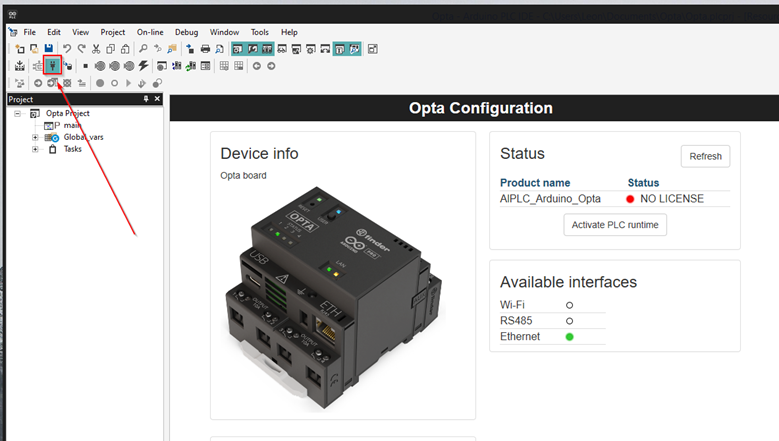
- Click the Connect to target button.
- If the connection is successful, you’re ready to interact with and program the Opta PLC.
9. Activate the PLC Runtime
- Finally, to fully leverage your Opta PLC, click the Activate PLC runtime button.
- Follow any on-screen prompts to complete the activation.
Common Issue: “Cannot Download Sketch File or cannot compile sketch file error code 1”
- Check DFU Mode: Make sure you double-clicked the reset button and that the device is in the correct mode.
- COM Ports: Ensure you’re selecting the correct COM ports as described above.
- Install Board Support: Verify that “Arduino mbed os opta” is installed in the Arduino IDE’s Boards Manager.
- Firewall Settings: Sometimes, a firewall may block communications; ensure you allowed access when prompted.
Conclusion
You should now have the Opta PLC set up and ready for your first project. Following these steps typically resolves the “Cannot download sketch file” (error code 1). If you continue to have issues, re-check your connections, COM port assignments, and that you’ve correctly installed all required software components.
Meshnex is official software implementer for Finder products.
For support or questions, contact: info@meshnex.nl